


What is Android error code 491?
Android error code 491 is an error that usually occurs when downloading an app from the Play Store. It means that the download or update is not available at the moment.
How can you fix Android error code 491?
Some of the solutions to this error include clearing the Google Play Store cache, synchronizing your Google account, installing Google+, and restoring your device to factory settings.
Please see our in-depth walk-through solutions below.
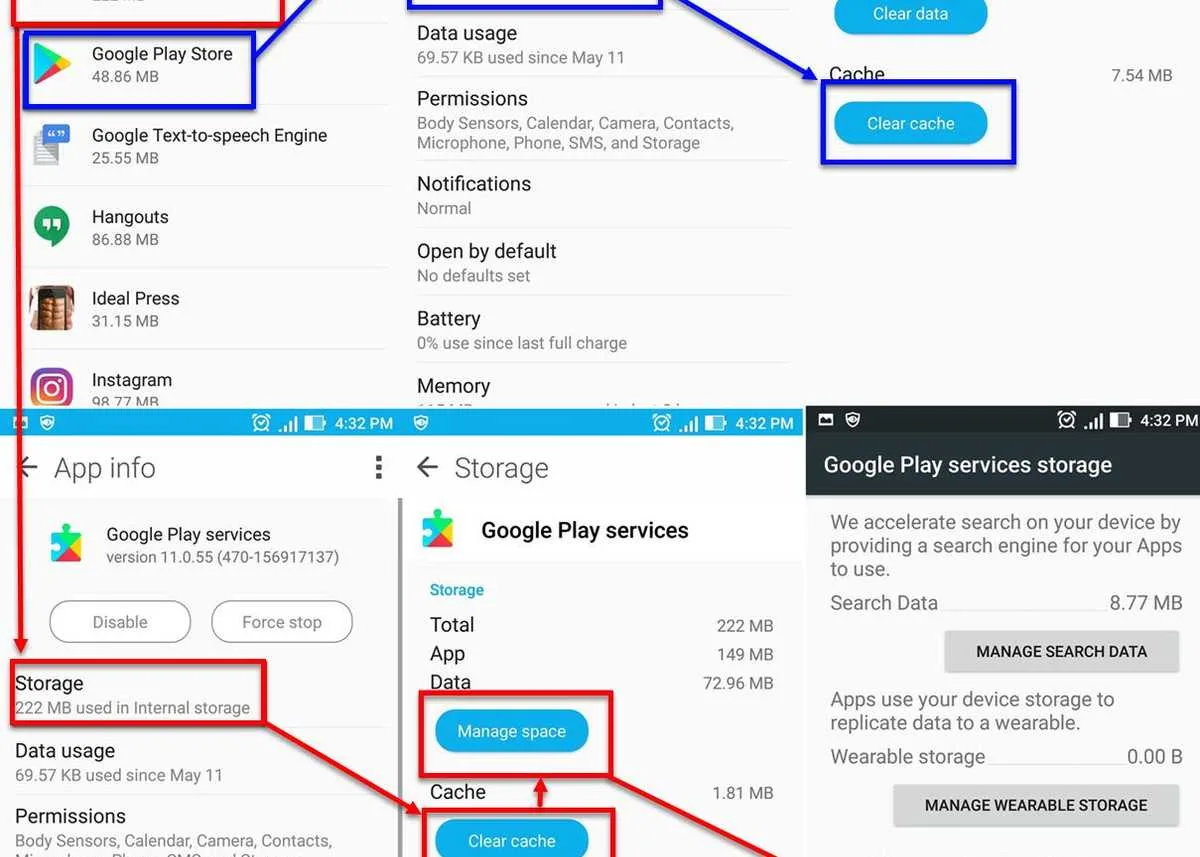
Google Play Store cache may be causing the Android error code 491. Turning your device off for at least three minutes allows it to clear the cache. Then, run Google Play store to see if you could download or update an application. If not, try the instruction below on how to delete Google Play Store or watch it here on YouTube.
- Disconnect from the internet.
- Go to Settings.
- Look for Application.
- Look for Google Play Store and press Disable/Force to stop.
- Press Clear Data.
- Now, back to Application look for Google Play Services.
- Go Storage and press Clear cache.
-
Then press Manage storage, then press Clear All Data.
NOTE: Your Android device may have a different user interface. -
Restart the device.
- Now reconnect to your internet connection.
- Run Google Play Store accept the terms.
- Then download the apps you want to install.


Your Google account may have been desynchronized with Google Play Store causing Android error code 491. Please log into your account so it will resynchronize with Google Play Store.
-
Go to Setting.
NOTE: Your Android device may have different user interface. -
Press Account.
- Press Google.
- Remove all Google Accounts.
- Add new Google account.
- Restart the device.
- Run Google Play Store.
-
Then download the apps you want to install.
-
Go to Setting.
- Tap Security.
-
Turn on Unknown sources.
-
Go to Setting.
NOTE: Your Android device may have a different user interface. -
Look for Back& Reset and press it.
- Press Factory data reset.
- Press Reset the device and then enter the password.
- Wait for your device to finish the restoration process.
- Run Google Play Store and accept the terms.
- Then download the apps you want to install.

