


What is Error code 0x8007003b Windows 10?
“Error code 0x8007003b Windows 10” is an error that usually occurs when transferring a file from another computer or server through a network.
How can you fix Error code 0x8007003b Windows 10?
Some of the solutions to this error include turning on network sharing, disabling anti-virus and firewall, and testing the hard disk drive (HDD).
Please see our in-depth walk-through solutions below.
To turn on network sharing you are required to use an administrator account. Or, if you have the username and password for the administrator account, please use it when Windows requests it. To access the administrator account, please see solution 1 at this link here.
To enable network sharing, please see below or watch it here on YouTube.
-
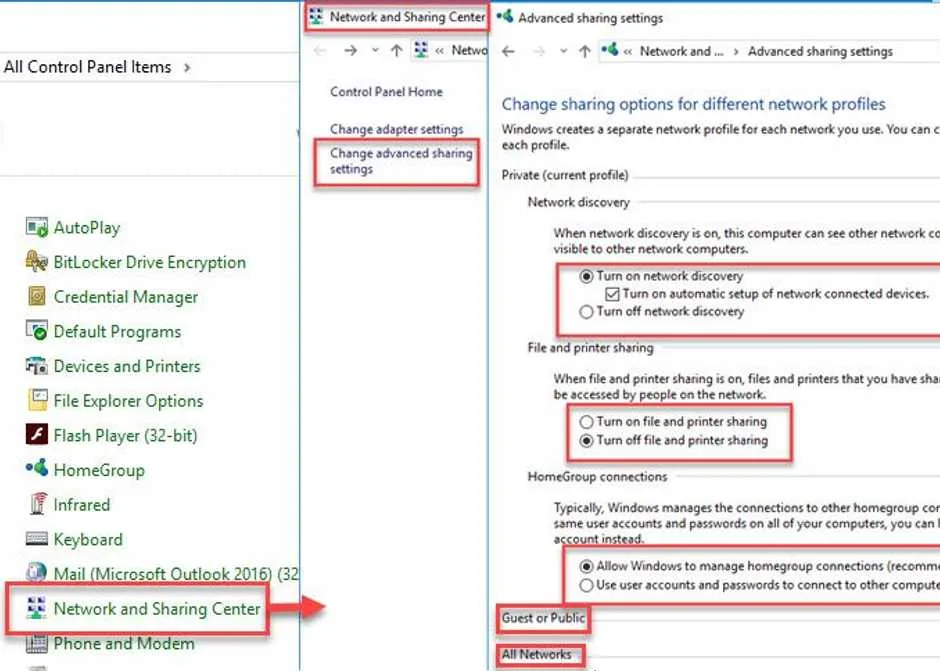
- Go to control panel, click Network and Sharing.
- Click Change advanced sharing setting.
- Click Turn on network discovery, Turn on file and printer sharing and Allow Windows to manage homegroup connection (recommended).
- You may also want turn on or off some settings in the Guest or Public and All networks.
- Click Save change when done.
- Make sure your account has a password if you are sharing a file to the network.


For the anti-virus, right-click the icon at the lower right side and select disable the anti-virus.
Turn off Windows Firewall
- Turn off Windows Firewall.
- Go to control panel ====> System and Security ===> Windows Firewall ===> Customize Settings.
- Then, restart.
To diagnose your HDD, please see below. If you have found an error, you might want to replace it to avoid more problems in the future.
Option 1. Test using Check disk
-
- Click Command Prompt.
- A Command Prompt window will appear.
- Type in chkdsk /r.
- For external HDD or secondary HDD, please use this. Chkdsk X: /F, where X is the letter assigned to your external HDD.
- Wait until it is done.
- Windows will tell you if an error is detected or not.
- Consider HDD for replacement if an error is detected.
Option 2. Test using HDtune
A YouTube video is provided here.
- Remove the defective hard disk drive and connect it to a working PC.
NOTE: If the working PC experience slow performance it means that the hard disk drive is defective. - Download and install HD Tune using this link here.
- Select the hard disk drive.
- Click Error Scan tab.
- Click Start.

