


What is ‘Gmail error 101’?
Gmail error 101 is an error that may occur when the user faces difficulty in loading the page for an endless amount of time. It may also time out the connection.
How can you fix ‘Gmail error 101’?
Some of the common fixes include:
* Disabling third-party extensions
* Deleting browser cache
* Disabling third-party software
* Disabling apps with access to your account
* Enabling or disabling Labs
Please see our in-depth walk-through solutions below.
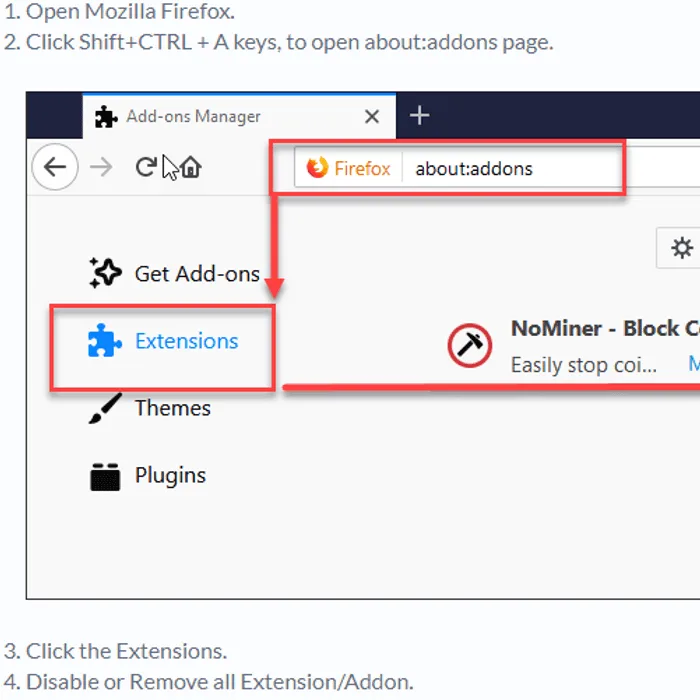
Mozilla Firefox
Google Chrome
Watch it here on YouTube
Your Gmail browser cache may have a problem resulting in “Gmail error 101.” The saved cache in your browser might be conflicting with the current Gmail website. You may want to use another browser or refresh the data cache. You may also need to delete all cache that was saved in your browser. See instructions below or watch it here on YouTube.
If you’re currently using this network, try to use data connection or ask for an assistant to the network admin. But, if you’re connected to your personal home network, try to disable third-party software that runs upon startup of your computer. Try to run Windows in clean boot, see steps below or watch it here on YouTube.
Clean boot
- Log in to your account.
- Open this site https://myaccount.google.com/permissions.
- Remove the access of all unwanted applications that were permitted.
-
See if Gmail works.
-
Open your Gmail account.
- Click the Gear icon on the upper right side.
- Select Settings.
- Then, click the Labs tab.
- Enable an Available Labs.
- Then, click Save changes to confirm.


