


What is iPhone error 17?
iPhone error 17 is an error that usually occurs when iTunes is unsuccessful in connecting and downloading the IPSW file from Apple’s server.
How can you fix iPhone error 17?
Some of the solutions to this error include checking if something is interrupting your iTunes connection and disabling the host.
Please see our in-depth walk-through solutions below.
- Log-in to an administrative user account, so you have the privilege to fully use the iTunes.
For Windows, please see link here.
For OS X, please see link here. - Make sure the date, time, and time zone are correct, to fully synchronize your iTunes to the Apple server.
For Windows here.
For OS X here. - Make sure your Windows or OS X updated, to avoid the missing supporting update.
For Windows here.
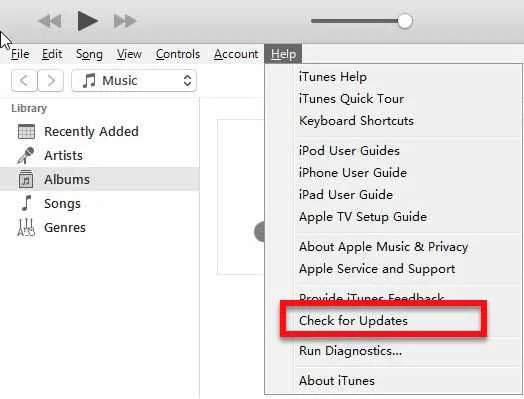
For OS X here. - Ensure your iTunes is updated.
NOTE: This is very important.
Please see link here. - If you think your operating system infected by malicious software, update, and scan using an anti-virus.
- After scanning your computer, disable your anti-virus including firewall and VPN that may interrupt the connection.
- Then make sure that your ISP is not having any problem. Use a browser and go to Speedtest.net to verify.
For WindowsThe instruction for the host file is in the video below
https://youtu.be/egPJcZ4M_5g?t=152
For OS X
- Use finder, click Go and select Go to folder.
- Type in “/private/etc/hosts” and press Go.
- Run iTunes on your computer and plug in your iPhone, iPod touch, or iPad.
- Once the restoration is complete, return the host file to /private/etc.
Then, try to upgrade your iPhone. If the error persists, you may want to ask help from the Apple service center.


